Manual Usage
Alternatively, you can manually execute each step of the FELINE workflow. Follow the instructions below to process the data manually. Each command must be executed from the project’s root directory.
Copy the cube file: Place the cube file into the data/raw/ directory of the project.
Create a virtual environment: Create a Python virtual environment to manage dependencies:
python3.x -m venv venv
Activate the environment: Activate the virtual environment:
source venv/bin/activate
Install dependencies: Install the required Python packages:
pip install -r requirements.txt
Preprocessing: Apply a median filter to the data cube to remove continuum sources:
python src/preprocessing/lsdcat/median-filter-cube.py data/raw/<CUBENAME>.fits --signalHDU=1 --varHDU=2 --num_cpu=<num_cores> --width=151 --output=data/processed/med_filt.fits
Apply spatial template matching: Filter the data cube with a spatial template:
python src/preprocessing/lsdcat/lsd_cc_spatial.py --input=data/processed/med_filt.fits --SHDU=1 --NHDU=2 --threads=<num_cores> --gaussian --lambda0=7050 -pc 0.7 --classic --output=data/processed/spatial_cc.fits --overwrite
Apply spectral template matching: Filter the data cube with a spectral template:
python src/preprocessing/lsdcat/lsd_cc_spectral.py --input=data/processed/spatial_cc.fits --threads=<num_cores> --FWHM=250 --SHDU=1 --NHDU=2 --classic --output=data/processed/spectral_cc.fits --overwrite
Construct signal-to-noise cube: Build the S/N cube:
python src/preprocessing/lsdcat/s2n-cube.py --input=data/processed/spectral_cc.fits --output=data/processed/s2n_v250.fits --clobber --NHDU=2 --SHDU=1
Transpose the cube: For better cache access, transpose the cube:
python -m src.preprocessing.masking_and_transpose <CUBENAME>.fits s2n_v250.fits
Compile and run the main program: Compile and execute the FELINE binary with the following commands:
make
./feline.bin <ZLOW> <ZHIGH> <MAX_MATCH> <IGNORE_BELOW>
Note
For SDL Usage: By default the Makefile activates SDL if it is available.If you want to disable SDL you need to add the following macro to the make command:make SDLavailable=0Postprocessing: Run scripts to detect objects, generate plots and create the PDF file:
python -m src.postprocessing.detect_objects s2n_v250.fits
python -m src.postprocessing.create_final_plots <CUBENAME>.fits s2n_v250.fits sorted_catalog.txt med_filt.fits J0014m0028
python -m src.postprocessing.create_pdf
Find results: After postprocessing, the results will be saved in the data/pdf_files/ directory:
data/pdf_files/result_*.pdf
PDF Format:
result_YYYY_MM_DD_HH:MM:SSClean up: To clean up temporary files after processing:
make clean
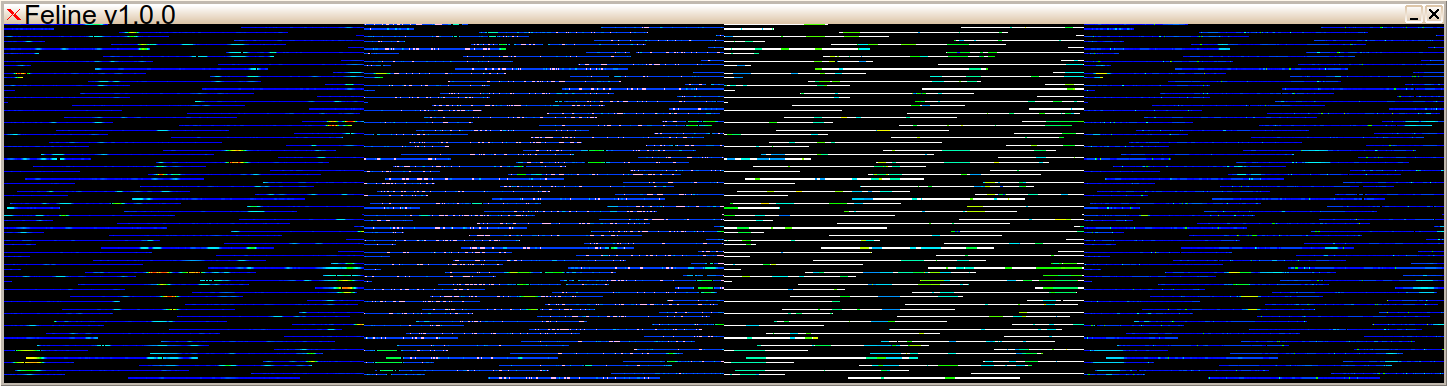
SDL Window of Feline running the UDF MUSE field on a 80 cores machine.